FusionPBX Configuration Guide
Overview
This guide covers the configuration of ictVoIP Billing integration with FusionPBX, including WHMCS server/module setup, API configuration, and system settings. Together with the FusionPBX Installation Guide guide and the high-level Provisioning Overview overview, this page explains how to wire FusionPBX into ictVoIP Billing v1.4.0.
WHMCS Module Configuration
Note: The ictsipreg WHMCS module is a separate optional addon that provides additional WHMCS integration capabilities. This module is not required for the core ictVoIP Billing integration (servers, providers, Client Services, Autobill) and requires separate licensing and installation.
Module Installation
Obtain Module Files * Contact ictVoIP for the ictsipreg WHMCS module * Module is provided as a separate package with its own licensing * Follow the WHMCS module installation guide provided with the package
Install Module in WHMCS
# Copy module to WHMCS modules directory
cp -r ictsipreg/ /var/www/html/whmcs/modules/servers/ictsipreg/
Enable Module in WHMCS * Go to Setup > Products/Services > Servers * Click Add New Server * Select ictVoIP SIP Registration from dropdown * Configure server settings
Server Configuration
Required Fields: (see also Server Management)
Server Name: Descriptive name (e.g., “ictVoIP FusionPBX Server”)
Hostname: FusionPBX server IP or domain
Username: FusionPBX admin username
Password: FusionPBX admin password
Port: 443 (HTTPS)
Secure: Check if using HTTPS
Optional Fields:
Access Hash: For additional security
Notes: Internal notes about this server
Tip
Multi-server environments: If you have multiple FusionPBX servers, designate one as the default by clicking its name in the WHMCS server list. See Setting a Default FusionPBX Server in the Server Management guide.
Product Configuration
Product Setup:
Create Product Group * Go to Setup > Products/Services * Create new group: “VoIP Products”
Create Product * Product Type: Shared Hosting * Module: Fusionpbx * License: Enter your FusionPBX Server Module License Key
Module Settings:
Domain: Default tenant domain
Extensions: 1122 | 2233 | 2234 | 2235
Extension Length: Number of digits (usually 4)
Default Password: Not required
Email Template: Welcome email template
License Activation
The FusionPBX server module requires a valid license key to operate. The module includes built-in license management buttons in the Product Module Settings.
License Buttons:
Button |
Description |
|---|---|
Activate (Green) |
Registers your current WHMCS domain and IP address with the license key. Use this for new installations or when moving to a new server. |
Verify (Blue) |
Checks if the license is valid for the current domain/IP. Use this to confirm the license is active. |
New Installation Steps:
Enter your license key in the License Key field
Click the Activate button to register your domain/IP with the license
Click the Verify button to confirm activation was successful
Save the product settings
License Status Indicators:
License Active - License is valid, shows registered domain and expiry date
License Activated - Domain/IP successfully registered with the license
Invalid License - License key not found or not registered for this domain/IP
License Expired - License needs renewal
License Suspended - Contact support
Note
The Activate button sends a reissue request to the licensing server, which updates the allowed domain and IP for your license key. This is required when:
Setting up a new WHMCS installation
Moving WHMCS to a new server or domain
Changing the server’s IP address
Warning
Each license key can only be active on one domain/IP at a time. Activating on a new server will deactivate the license on the previous server.
API Configuration
Authentication Setup
The FusionPBX module requires secure API authentication to communicate with your FusionPBX server. These same credentials are later used by the ictVoIP Billing addon (for example, from the Client Services / Server Provisioning Settings screen) to run connectivity and whitelist tests.
Required Credentials:
FusionPBX URL: Your FusionPBX server address
Admin Username: FusionPBX administrator username
Admin Password: Secure administrator password
Default Domain: Primary tenant domain
Security Best Practices:
Use HTTPS and Whitelists for all API communications
Implement API rate limiting
Use strong, unique passwords
Enable IP whitelisting if possible
Regularly rotate API credentials
API Whitelist Configuration
The /chkcon.php endpoint now uses an IP and CIDR-based whitelist for authentication. Only requests originating from trusted IP addresses or subnets listed in the chkcon_whitelist.conf file will be granted API access.
No username or password is required for whitelisted IPs.
All other requests will be denied with a clear error message.
The whitelist is managed in a plain text file (chkcon_whitelist.conf), one IP or CIDR per line.
Sample whitelist file:
# chkcon_whitelist.conf
192.168.1.20
192.168.1.0/24
WHMCS Integration Note: When configuring the FusionPBX server in WHMCS, the “Test Connection” button now checks API access based on the IP whitelist. Username and password fields are not required for this endpoint. Ensure your WHMCS server’s public IP is included in chkcon_whitelist.conf on the FusionPBX server.
Important
fail2ban Configuration:
In special cases, you may need to configure fail2ban to allow the WHMCS IP address. If your FusionPBX server uses fail2ban for security, add the WHMCS server IP to the fail2ban whitelist to prevent API access issues during billing operations and automated provisioning tasks.
Response Examples:
{
  "success": 1,
  "message": "API Access Granted: Whitelisted IP"
}

{
  "success": 0,
  "message": "API Access Denied: Only whitelisted IPs may access this endpoint."
}
API Endpoints
The following API endpoints are available for integration and automation. All endpoints require secure authentication. These examples illustrate the design structure and usage patterns for typical operations:
Status Endpoint
Checks server connectivity and authentication.
curl -X POST https://your-fusionpbx.com/app/status/index.php \
  -d "username=admin&password=your-password"
Registration Endpoint
Checks SIP device registration status for a given extension and domain.
curl -X POST https://your-fusionpbx.com/app/registrations/check_registration.php \
  -d "username=admin&password=your-password&extension=1001&tenant_domain=yourdomain.com"
Gateway Provisioning Endpoint
Manages SIP gateway provisioning.
curl -X POST https://your-fusionpbx.com/app/gateways/provision.php \
  -d "username=admin&password=your-password&gateway_name=test_gateway"
Extension Management Endpoint
Example for creating or updating an extension (actual endpoint and parameters may vary by deployment):
curl -X POST https://your-fusionpbx.com/app/extensions/manage.php \
  -d "username=admin&password=your-password&action=create&extension=1002&domain=yourdomain.com"
Call Detail Records (CDR) Endpoint
Retrieves call detail records for reporting or billing.
curl -X POST https://your-fusionpbx.com/app/xml_cdr/export_cdr.php \
  -d "username=admin&password=your-password&date_start=2024-01-01&date_end=2024-01-31"
These examples are for illustration only. Actual endpoint paths and parameters may differ depending on your deployment and customizations. Always refer to your deployment’s API documentation for the most accurate details.
Database Configuration
PostgreSQL Requirements:
The module requires access to the FusionPBX PostgreSQL database with the following permissions:
Read access to extension tables
Read access to domain configuration
Read access to gateway settings
Read access to call detail records
Read access to system settings
Required Database Tables:
Extension management tables
Domain/tenant configuration tables
Gateway configuration tables
Call detail record tables
System settings tables
Database Security:
Use dedicated database user with minimal required permissions
Enable SSL connections when possible
Implement connection pooling for performance
Regular database backups and monitoring
System Configuration
FusionPBX Settings
Theme Configuration:
The module supports custom theme integration for branding purposes. Configure your preferred login template and styling through the FusionPBX admin interface.
Domain Settings:
Configure multi-tenant domain settings to support multiple client environments. Each domain can have its own extensions, gateways, and settings.
Web Server Configuration
nginx Configuration:
Ensure your nginx configuration properly handles API endpoints and includes appropriate security headers. The web server should be configured to:
Serve static files efficiently
Handle PHP processing
Implement security headers
Support SSL/TLS encryption
Apache Configuration:
For Apache deployments, configure virtual hosts with proper directory permissions and security settings. Include:
Document root configuration
Directory access controls
Security header implementation
SSL certificate handling
PHP Configuration
Required Extensions:
The module requires the following PHP extensions:
PostgreSQL database connectivity
cURL for API communications
JSON for data processing
OpenSSL for encryption
Multibyte string support
Security Settings:
Implement proper PHP security hardening:
Disable PHP version exposure
Configure error logging
Set appropriate execution limits
Enable secure session handling
FreeSWITCH Configuration
SIP Profile Settings:
Configure FreeSWITCH SIP profiles for proper extension registration and call handling. Ensure profiles are properly configured for:
Internal extension registration
External gateway connectivity
Security and authentication
Call routing and processing
CDR Configuration:
Enable XML CDR for call detail record collection. Configure CDR settings for:
Call logging and billing
Database storage
Error handling
Performance optimization
Special Number Billing
Special Number Billing allows you to configure custom billing rules for specific number patterns at the product level. This is particularly useful for Australian Smartnumbers (1300*, 1800*, 13*) or any other special prefixes that require different billing treatment than standard tariff rates.
New in version 1.4.0-Beta.10: Special Number Billing feature introduced
Changed in version 1.4.0-Beta.11: Performance optimization (159x faster), CDR view filtering, and bug fixes
Key Features:
Product-Level Configuration - Each product can have its own set of special rate rules
Pattern Matching - Supports prefix matching (e.g.,
1300*) or regex patternsMultiple Billing Modes - Flat per call, per minute, or hybrid (flat + per minute)
Direction-Specific Rules - Configure rules for inbound, outbound, or both directions
Priority-Based Matching - Higher priority rules are evaluated first
Bypass Global Exclude - Special rate patterns take precedence over global provider exclude lists
CDR View Filtering - Client area only shows CDRs matching special rate patterns
Use Cases
Special Number Billing is designed for scenarios where certain number prefixes require different billing treatment:
Australian Smartnumbers:
1300* - Local rate numbers (caller pays local call rate, receiver pays difference)
1800* - Toll-free numbers (receiver pays full cost)
13** - 6-digit national numbers
Other Applications:
Premium rate numbers (e.g., 1900*, 0900*)
International toll-free (e.g., 800*, 00800*)
Short codes and special services
Custom internal billing codes
Enabling Special Number Billing
Navigate to Setup > Products/Services > Products/Services
Edit the FusionPBX product
Go to the Module Settings tab
Enable the Special Number Billing toggle
Click Configure Special Rates to open the rule management modal
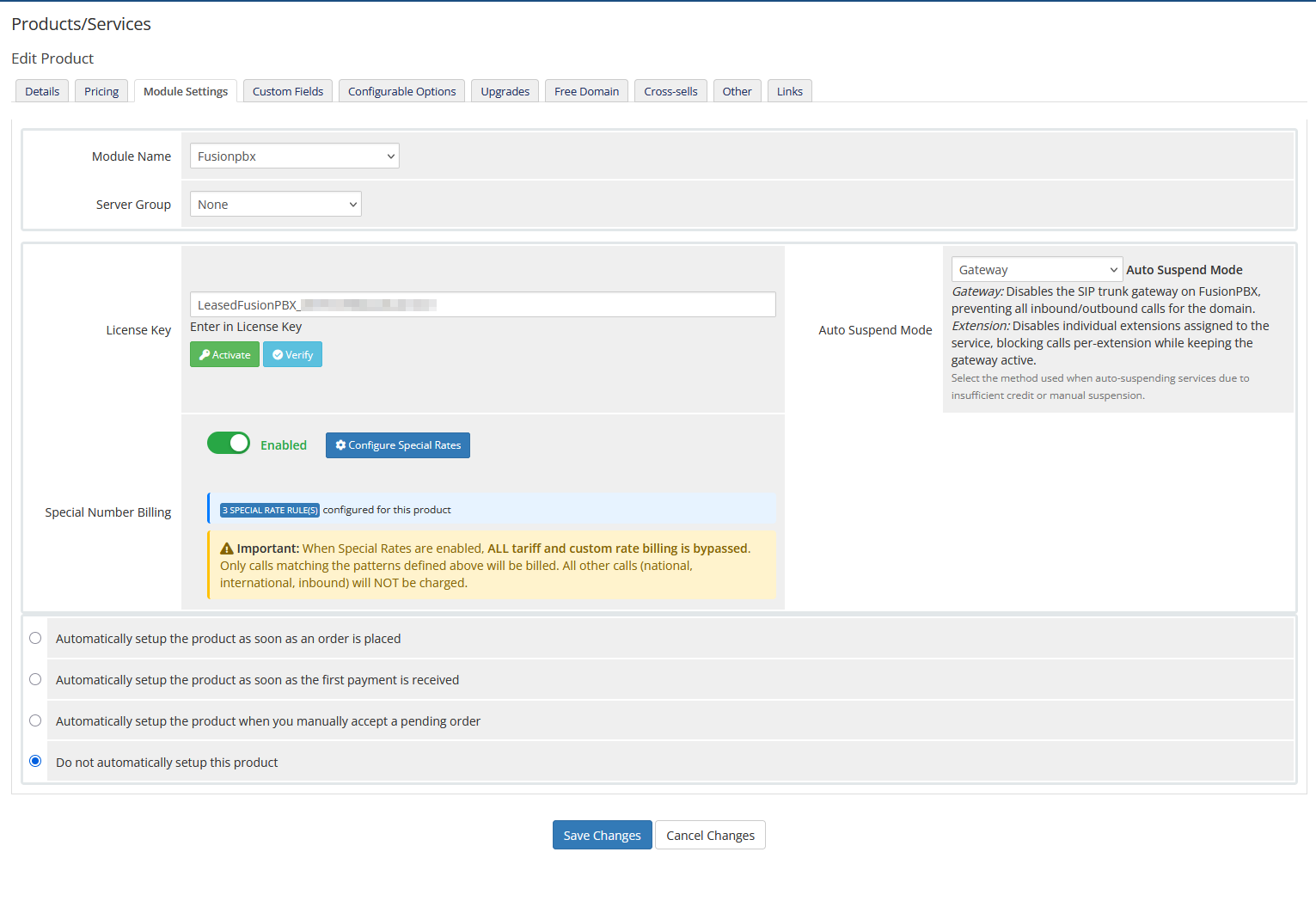
Special Number Billing toggle in Product Module Settings
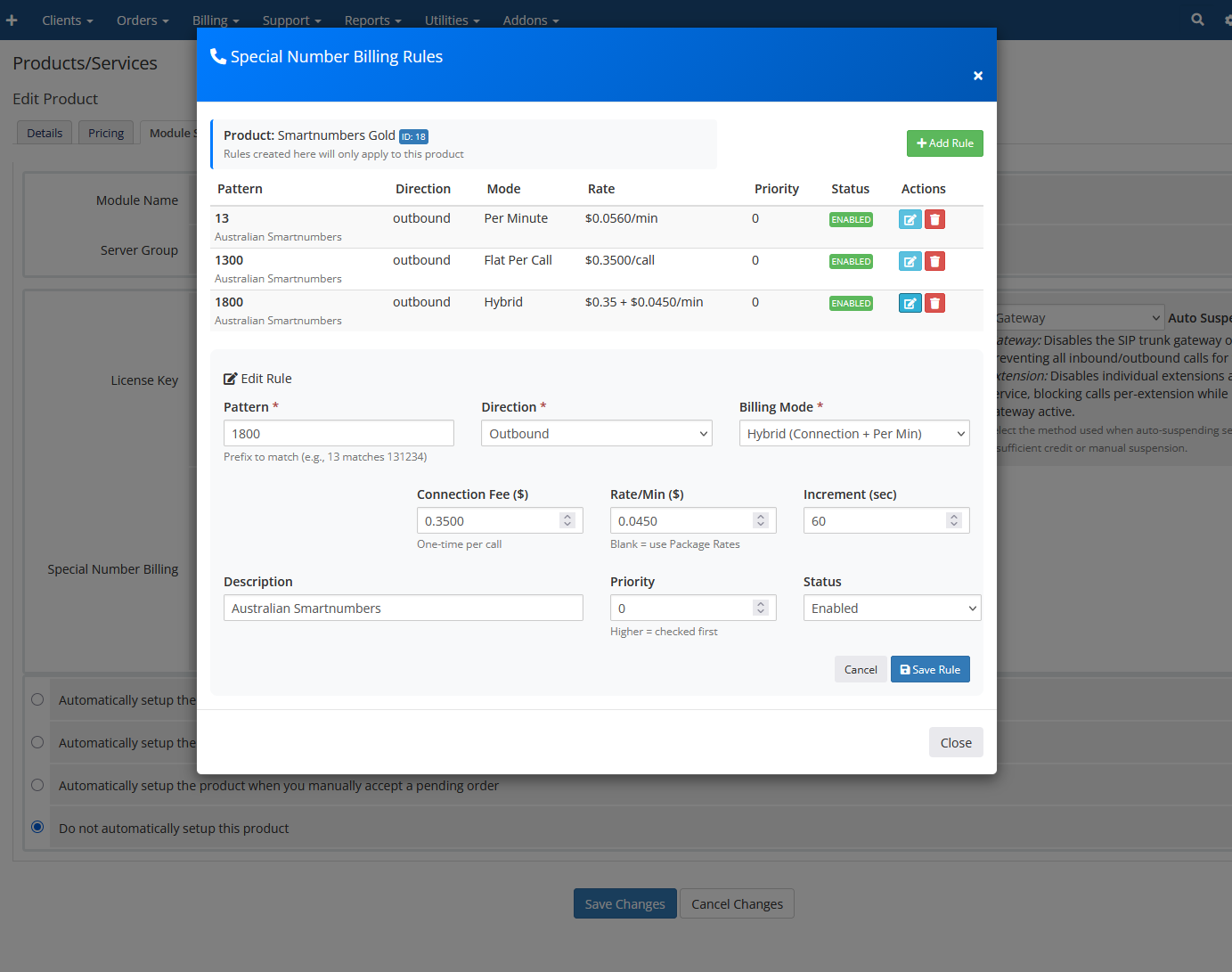
Configure Special Rates modal for rule management
Warning
When Special Number Billing is enabled, all standard tariff billing is bypassed for that product. Only calls matching special rate patterns will be billed. Calls that don’t match any pattern will not be charged.
Tip
Separate Products Strategy: Create separate WHMCS products for special rate billing vs standard tariff billing. This allows you to:
Assign special rate products to handle only 1300/1800/13 prefixes
Assign standard tariff products to handle all other international/national calls
Use global exclude lists on standard products to filter out special prefixes
Configuring Special Rate Rules
Each rule consists of the following fields:
Field |
Description |
|---|---|
Pattern |
The number pattern to match (e.g., |
Pattern Type |
|
Direction |
|
Billing Mode |
|
Flat Rate |
Fixed charge per call (used with flat_per_call and hybrid modes) |
Per Minute Rate |
Charge per minute (used with per_minute and hybrid modes) |
Priority |
Higher values are matched first (default: 10) |
Rule Name |
Optional descriptive name for the rule |
Enabled |
Toggle to enable/disable the rule |
Billing Mode Examples:
flat_per_call: $0.35 per call regardless of duration
per_minute: $0.05 per minute of call duration
hybrid: $0.20 connection fee + $0.03 per minute
Example Configuration
Here’s a typical configuration for Australian Smartnumbers:
Pattern |
Type |
Direction |
Mode |
Flat Rate |
Per Min |
Priority |
|---|---|---|---|---|---|---|
1800 |
prefix |
outbound |
flat_per_call |
$0.35 |
20 |
|
1300 |
prefix |
outbound |
flat_per_call |
$0.35 |
15 |
|
13 |
prefix |
outbound |
flat_per_call |
$0.35 |
10 |
Note
Priority Order: The 1800 pattern has the highest priority (20), so it will be matched first. The 13 pattern has the lowest priority (10), ensuring it only matches 6-digit 13XXXX numbers that don’t start with 1300 or 1800.
Invoice Display
Special rate calls are grouped by pattern and direction on invoices:
Special Rate Calls (29/12/2025 to 29/01/2026)
[OUTBOUND] 1300* (flat_per_call): 4 calls, 11 min, $1.40
[OUTBOUND] 1800* (flat_per_call): 1 calls, 5.7 min, $0.35
[OUTBOUND] 13* (flat_per_call): 1 calls, 4.1 min, $0.35
Client Area CDR View
When Special Number Billing is enabled for a product, the client area CDR view is automatically filtered to show only calls matching the configured special rate patterns. This provides a clean view for clients who are only being billed for special numbers.
Behavior:
Standard billing products: Show all CDRs (filtered by global suppress/exclude)
Special rate products: Show only CDRs matching special rate patterns
Non-matching CDRs are hidden from the client view
Real-Time Billing Integration
Special Number Billing works with both standard autobill and real-time billing:
Autobill: Special rates are checked before the global exclude filter
Real-Time Billing: Uses the existing real-time billing flag from Package Rates Configurator
To enable real-time billing for special rates:
Assign the product to a package in Package Rates Configurator
Enable Real-time Billing for that package
Configure special rate rules in the product’s Module Settings
Real-Time Billing Behavior:
CDRs matching special rate patterns are inserted with
calltype='SpecialRate'Non-matching CDRs are skipped entirely (not inserted into the database)
Credit deduction only applies to matching special rate calls
Troubleshooting Special Rates
Calls not being billed:
Verify the pattern matches the destination number format in your CDRs
Check that the rule is enabled
Ensure the product has Special Number Billing toggle enabled
Review the autobill debug output for pattern matching details
Wrong rate applied:
Check rule priorities - higher priority rules match first
Verify pattern specificity (
1300vs13)Ensure direction matches the call type (inbound/outbound)
Debug Output:
Run autobill with debug enabled to see special rate matching:
=== SPECIAL RATE CHECK ===
Destination: 1300123456
Checking pattern: 1800 (priority: 20) - NO MATCH
Checking pattern: 1300 (priority: 15) - MATCH!
Billing Mode: flat_per_call
Flat Rate: $0.35
===========================
Billing Integration Setup
WHMCS Product Configuration
Product Features:
The module provides comprehensive VoIP service management through WHMCS:
Extension Management: Automated extension provisioning and management
SIP Credentials: Secure credential generation and distribution
Call Recording: Configurable recording options
Voicemail: Automated voicemail setup and configuration
Call Forwarding: Flexible forwarding rule management
Pricing Tiers:
Configure multiple service tiers to meet different client needs:
Basic: Single extension with essential features
Professional: Multiple extensions with advanced features
Enterprise: Unlimited extensions with full feature set
Automation Rules
Provisioning Workflow:
The module automates the complete service provisioning process:
Client places order through WHMCS
System automatically creates extension in FusionPBX
Secure credentials are generated and distributed
Welcome notification is sent to client
Service is activated and ready for use
Billing Workflow:
Automated billing and usage tracking:
Call detail records are collected automatically
Usage is calculated based on configured rates
Invoices are generated according to billing cycles
Payment processing is handled seamlessly
Account reconciliation occurs automatically
Email Templates
Welcome Email Template:
Configure professional welcome emails that include:
Service activation confirmation
Extension and credential details
Setup instructions and support information
Branded company information
Usage Alert Template:
Set up automated usage notifications:
Usage threshold alerts
Billing cycle reminders
Service upgrade suggestions
Support contact information
Monitoring and Maintenance
Health Checks
API Health Monitoring:
Implement automated health checks for your FusionPBX API endpoints:
Monitor API response times and availability
Check authentication and authorization
Verify database connectivity
Alert on service failures
Database Health Monitoring:
Regular database health checks should include:
Connection availability testing
Query performance monitoring
Disk space and resource usage
Backup verification
Log Monitoring
API Log Monitoring:
Monitor API access and error logs for:
Authentication attempts and failures
API usage patterns and trends
Error rate monitoring
Performance bottlenecks
System Log Monitoring:
Track system-level logs including:
Web server access and error logs
PHP error and warning logs
FreeSWITCH operational logs
CDR processing logs
Backup Configuration
Automated Backup Strategy:
Implement comprehensive backup procedures:
Database backups with point-in-time recovery
Configuration file backups
Web application file backups
Regular backup testing and verification
Backup Retention:
Configure appropriate backup retention policies:
Daily backups for recent data
Weekly backups for medium-term retention
Monthly backups for long-term archival
Automated cleanup of expired backups
Security Configuration
SSL/TLS Setup
Certificate Management:
Implement proper SSL/TLS certificate management:
Use trusted certificate authorities
Configure automatic certificate renewal
Monitor certificate expiration dates
Implement proper certificate validation
Security Headers:
Configure web server security headers:
Content Security Policy (CSP)
X-Frame-Options for clickjacking protection
X-Content-Type-Options for MIME sniffing protection
X-XSS-Protection for cross-site scripting protection
Firewall Configuration
Network Security:
Implement proper firewall rules for:
SSH access control
Web server port management
SIP traffic filtering
Database access restrictions
Access Control:
Configure access controls for:
API endpoint protection
Database connection restrictions
Administrative interface security
File system permissions
Next Steps
After configuration:
Test All Integrations - Verify WHMCS and API connectivity
Set Up Monitoring - Configure health checks and alerts
Create Documentation - Document custom configurations
Train Staff - Provide training on new features
Plan Maintenance - Schedule regular maintenance tasks
For API endpoint details, see the FusionPBX API Endpoints guide.