Client Services Admin Area
Overview
Within the WHMCS Admin Area, the ictVoIP Billing addon provides a Client Services section for each provider/PBX. This is an administrator-facing dashboard that allows you to manage FusionPBX hosts and client VoIP services without leaving WHMCS.
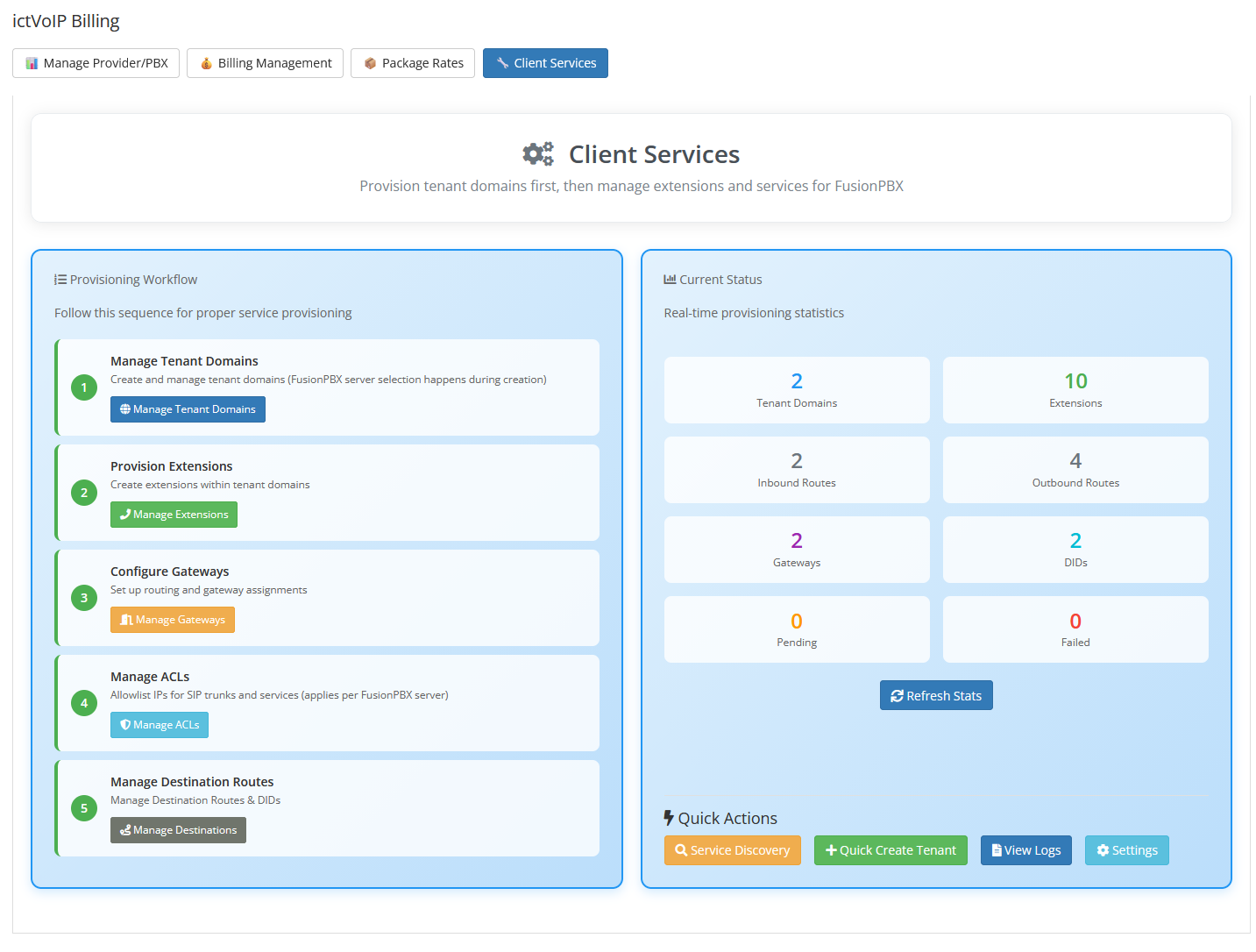
Core Tools
From the Client Services admin area you can:
Core Tools Index
Typical workflow: choose a provider/PBX at the top of the screen, then use the tabs and actions in the Client Services view to locate tenants and services, run provisioning actions, and review recent activity.
Manage Tenant Domains – Create, import, synchronize, and update FusionPBX tenant domains for the selected provider, including capacity limits and descriptions, while keeping related WHMCS services aligned. Use this when onboarding new customers or bringing existing FusionPBX tenants under billing and automation control.
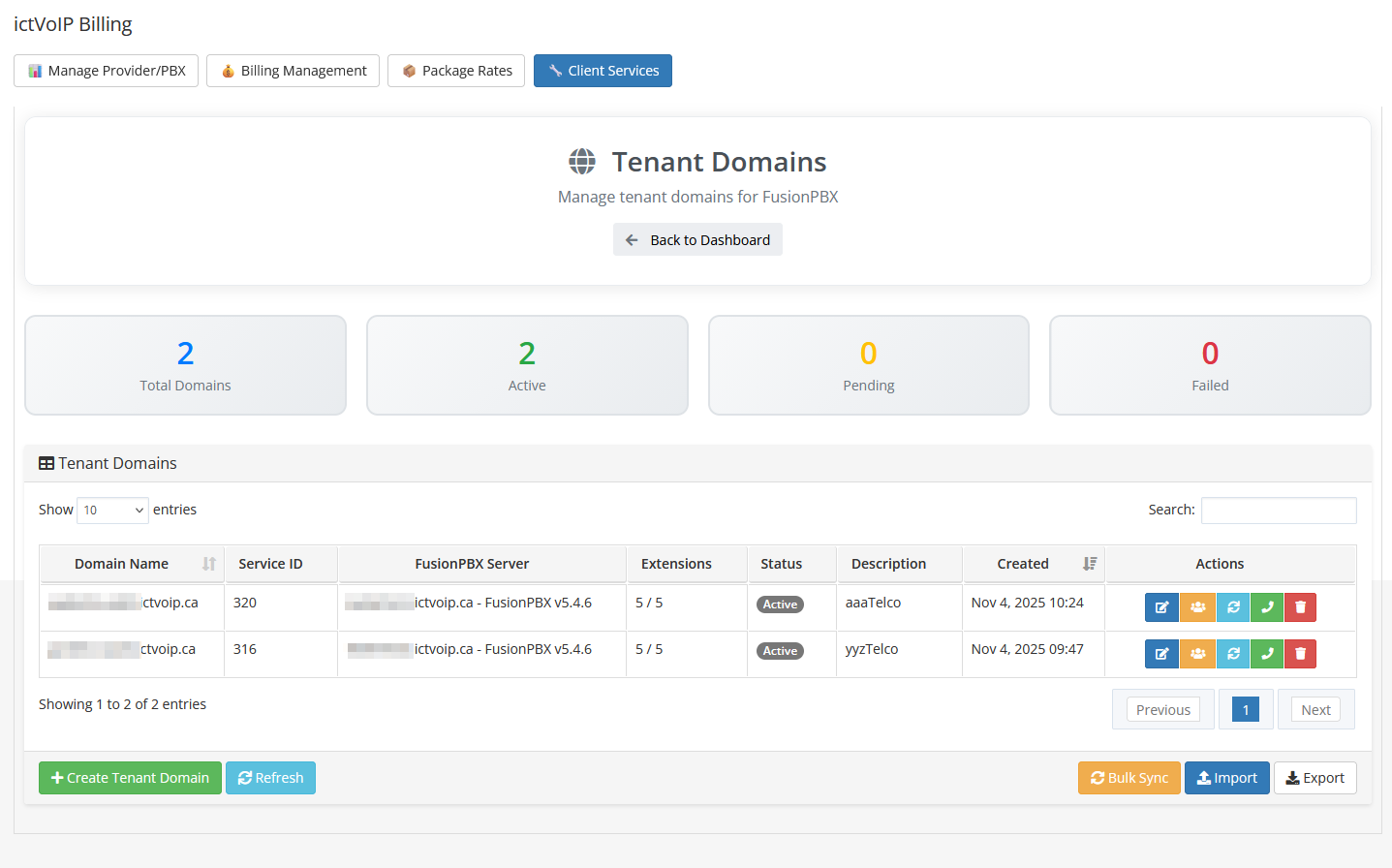
Typical workflow: search for or select an existing tenant, review its limits and description, then edit or sync details as needed. Use the “add” or “import” actions when onboarding a new customer or bringing an existing FusionPBX tenant under management.
Provision Extensions – Add, view, and manage extensions for each tenant, provision them to FusionPBX, and link or unlink extensions to WHMCS services for billing and lifecycle control. Use this to keep the number and assignment of extensions in sync with purchased packages.
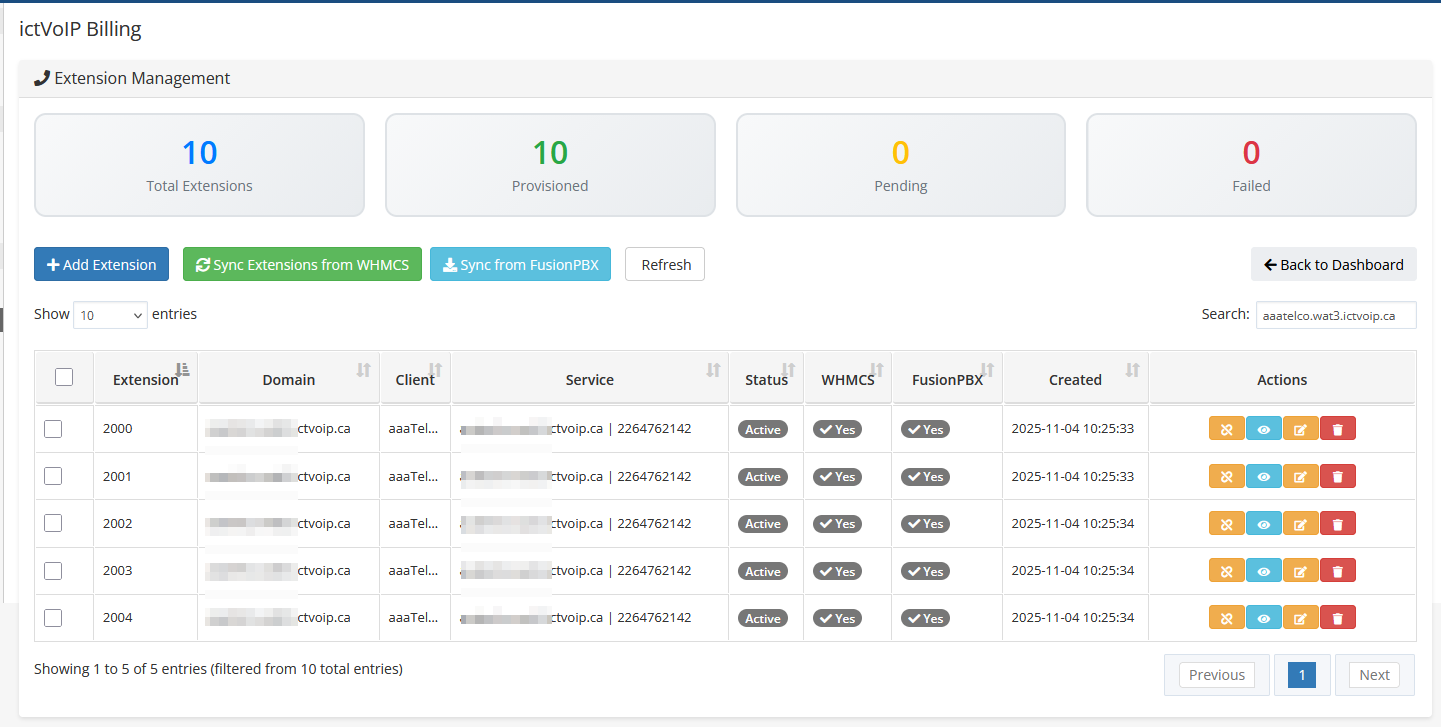
Typical workflow: filter by tenant, review the list of extensions, create or edit extensions as required, then ensure each extension is linked to the correct WHMCS service so billing stays in sync with provisioned resources.
Extension Management Enhancements
Searchable Dropdowns (Select2 Integration)
All client and service selection dropdowns in extension management now feature real-time search filtering powered by Select2. This significantly improves usability when working with large client databases (2K+ clients).
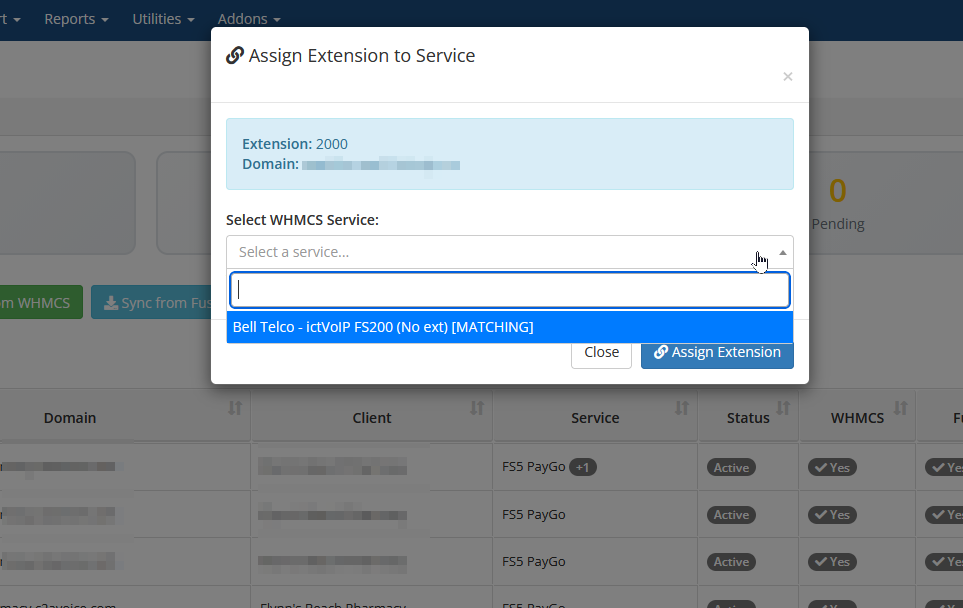
Features:
Real-time Search – Type to instantly filter clients and services
Clear Buttons – Quickly reset selections
Proper Modal Handling – Search works correctly within modal dialogs
WHMCS Theme Styling – Matches the admin interface design
Available in:
Assign Extension modal
Add Extension modal
Bulk Assign Extensions modal
Sync Extensions modal
Assign to Additional Service modal
Service Column Enhancement
The Service column now displays the actual WHMCS product name (e.g., “VoIP Extension Service”, “Smartnumbers Gold”) instead of the tenant domain, making it easier to identify which billing package each extension is assigned to.
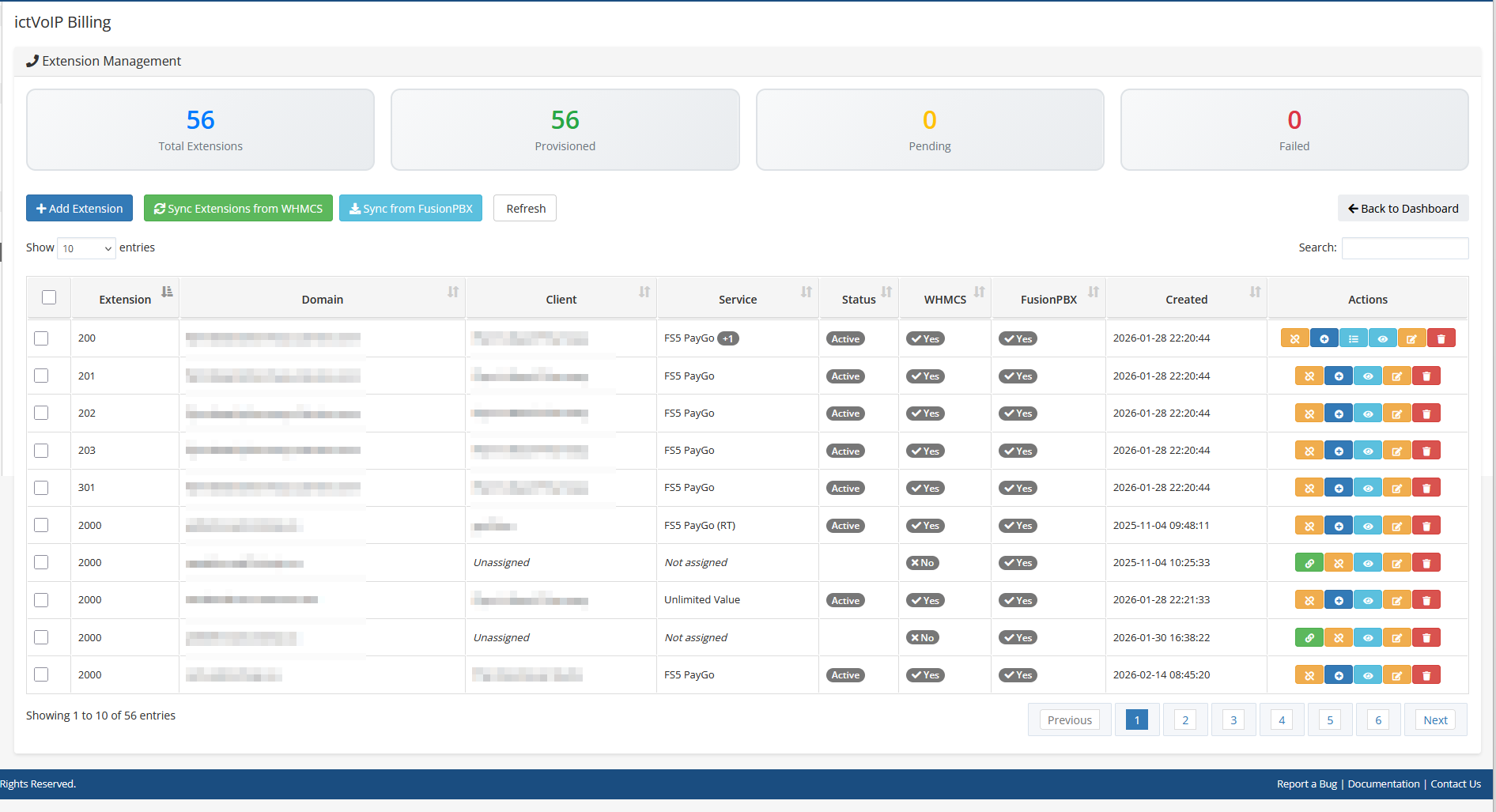
Multi-Product Extension Assignment (Smartnumbers Support)
Extensions can now be assigned to multiple WHMCS products simultaneously, designed specifically for Smartnumbers and Special Number Billing use cases where the same extensions need to appear on both a regular VoIP product and a Special Number Billing product.
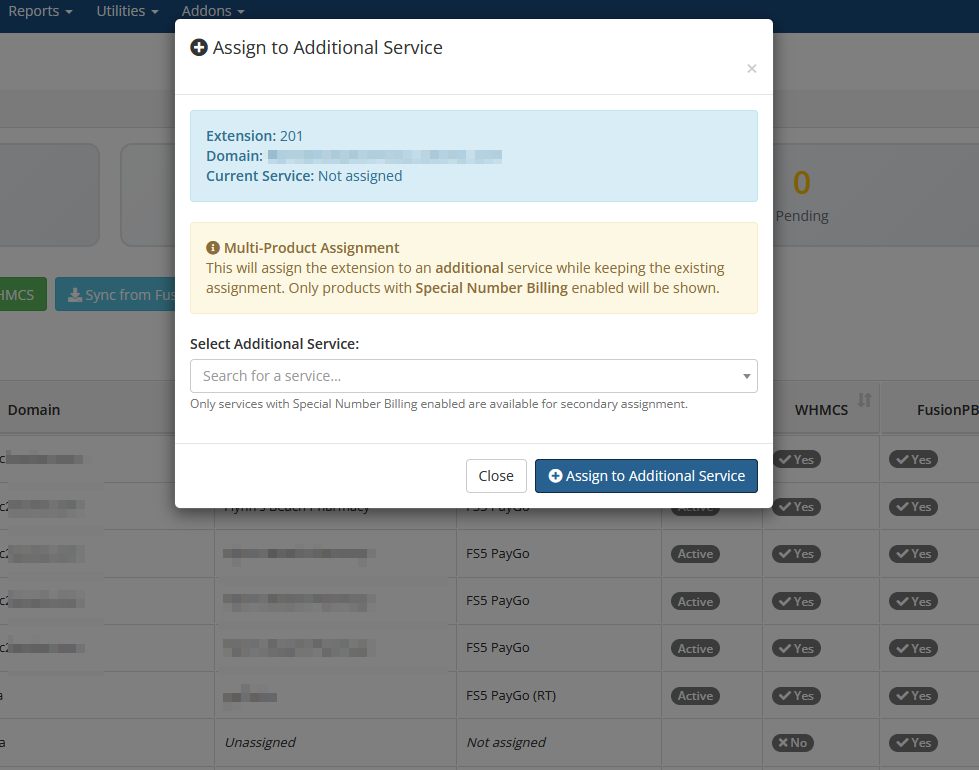
Key Features:
Primary + Secondary Assignments – Extensions have one primary service and unlimited secondary assignments
Visual Indicators – Service column shows badges (+1, +2) for secondary assignments with product name tooltips
Assign to Additional Service – Blue + button to assign extensions to additional Special Number Billing services
Manage Additional Services – Blue list icon button to view and unassign secondary services
Automatic Filtering – Service dropdown shows only products with Special Number Billing enabled (configoption3 = ‘on’)
Client-based Filtering – Shows all Special Billing services for the same client
Real-time Updates – DataTable refreshes automatically after assign/unassign operations
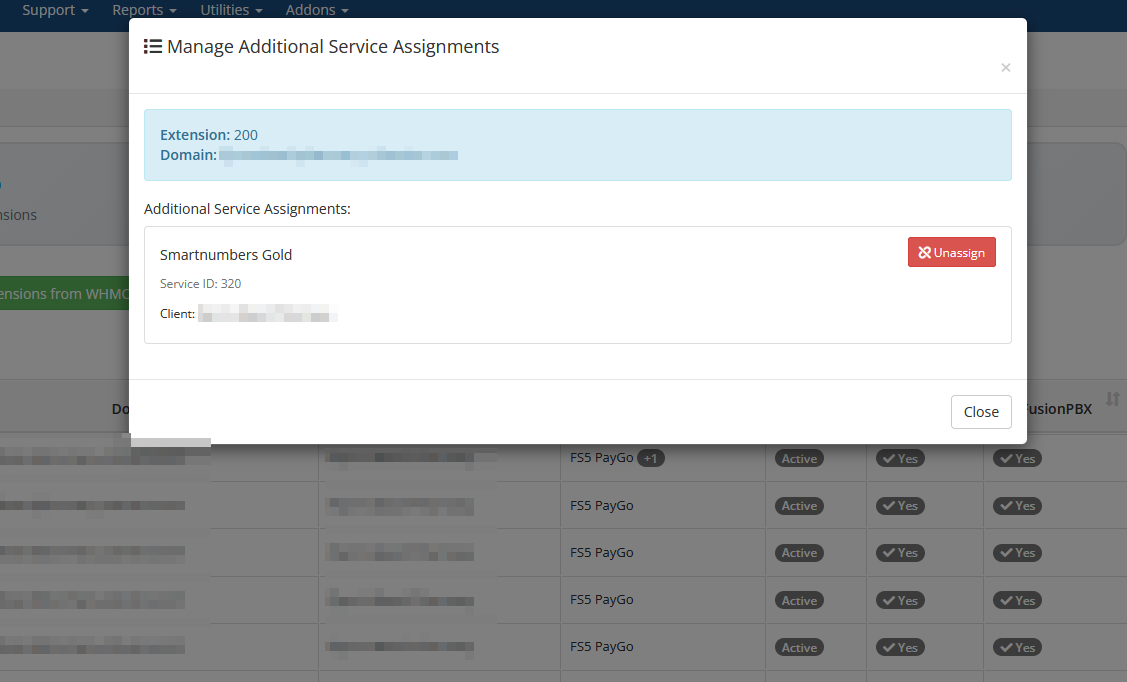
Typical workflow for multi-product assignment:
Locate an extension already assigned to a primary service
Click the blue + button to open “Assign to Additional Service” modal
Select a Special Number Billing service from the filtered dropdown
Click Assign to create the secondary assignment
The Service column updates to show a +1 badge with tooltip
Click the blue list icon to manage or unassign secondary services
Validation:
Prevents duplicate assignments to the same service
Validates service has Special Number Billing enabled
Provides clear error messages for admin context
Backward compatible with existing single-product assignments
Configure Gateways
Use gateway templates and provider-scoped settings to configure and sync SIP gateways for tenants, keeping provider trunks and PBX routing aligned with billing. Use this when deploying or adjusting connectivity to upstream carriers.
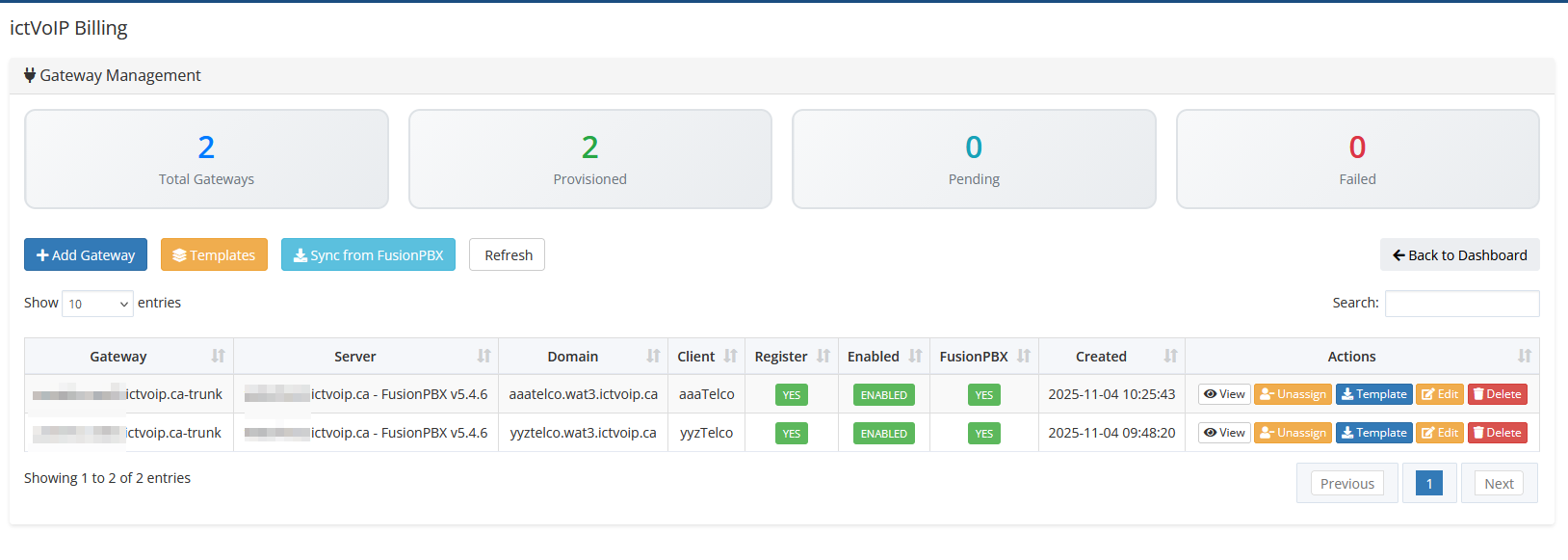
Typical workflow: select the provider and tenant, choose an appropriate gateway template, adjust any tenant-specific parameters (such as credentials or hostnames), then apply and sync the gateway to FusionPBX.
Manage ACLs
Review and adjust provider-side access control lists that determine which source IP addresses are allowed to reach the PBX or provider services. Use this when adding or modifying PBX/provider ACL entries that relate to your WHMCS or management hosts.
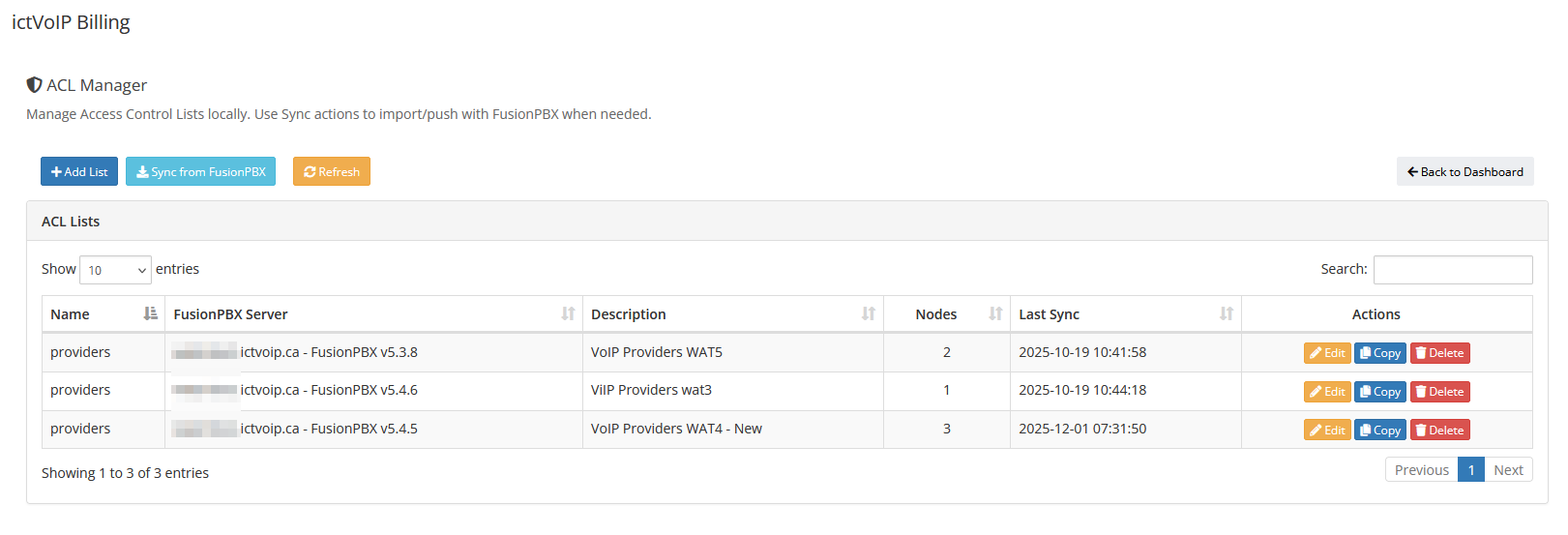
Typical workflow: review the current list of provider/PBX ACL addresses, compare it against your WHMCS and management hosts, then add or remove entries so the provider-side ACLs reflect your intended access policy.
Manage Destination Routes
View and manage destination routing information (such as inbound numbers/DIDs and associated tenants) to keep PBX routing and billing destinations in sync. Use this when assigning new DIDs to tenants or auditing existing inbound routing.
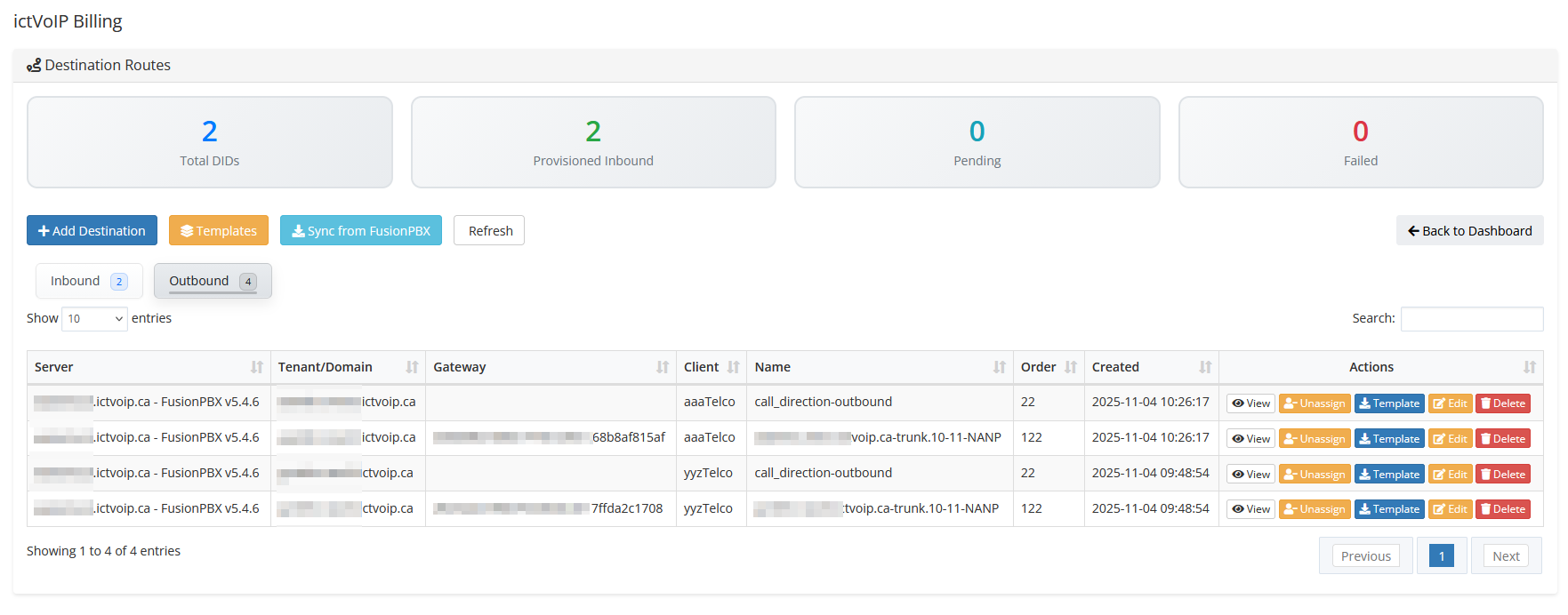
Typical workflow: search for an inbound number or DID, confirm which tenant it is attached to, then update the routing or assignment when numbers are moved between tenants or new DIDs are activated.
Service Directory
Browse and filter client services associated with the provider/PBX, helping you quickly locate which tenants, extensions, and gateways belong to which WHMCS services. Use this as a lookup tool when troubleshooting or answering customer questions.
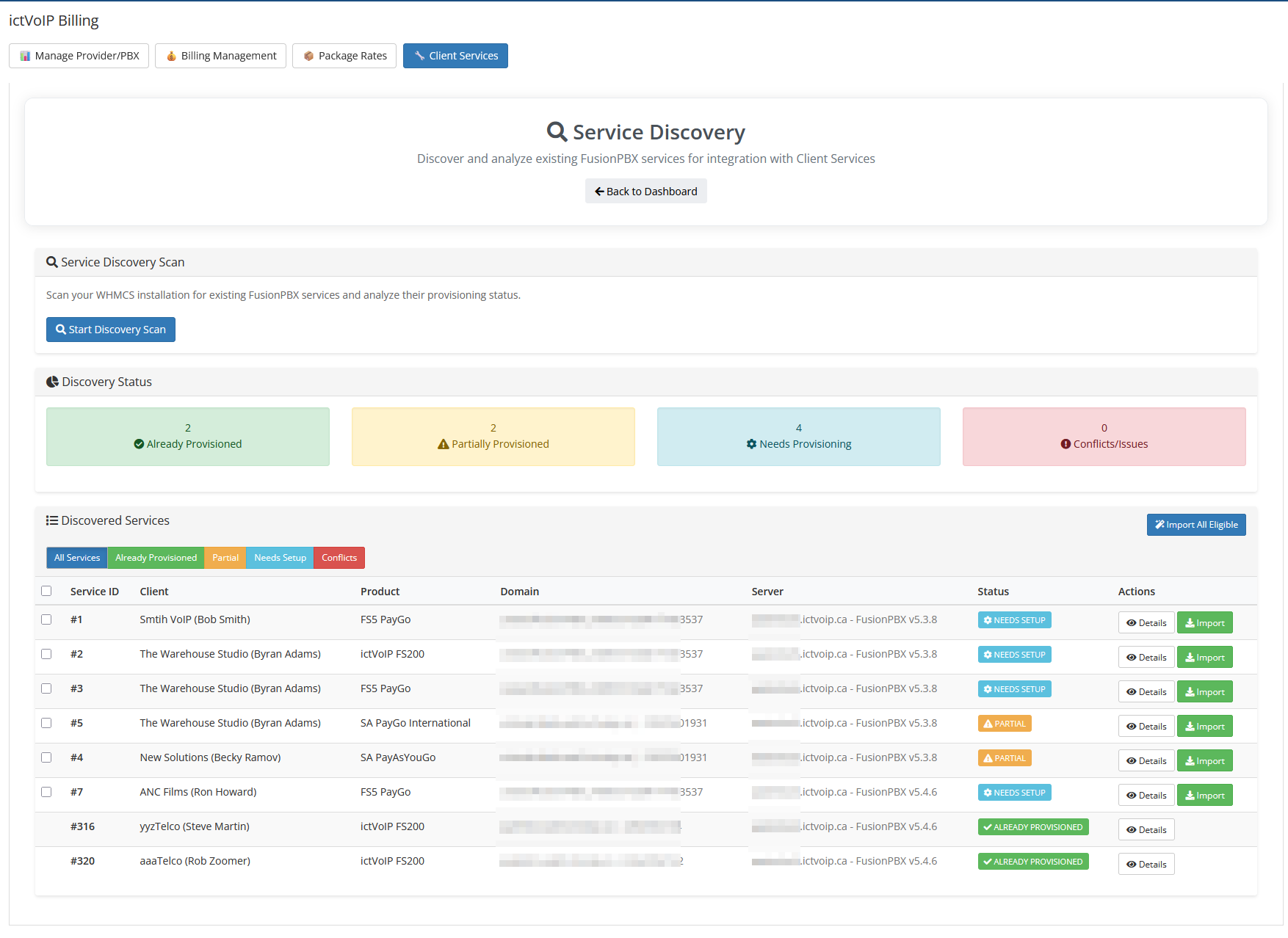
Typical workflow: start from a WHMCS client or service you are investigating, use the directory filters to locate it, then drill into the associated tenant, extensions, or gateways to continue troubleshooting.
Quick Create Tenant
Use guided forms to rapidly create new FusionPBX tenants (domains) and optionally bind them to WHMCS services and main DIDs in a single workflow. Use this for fast, standardized onboarding of new client sites.
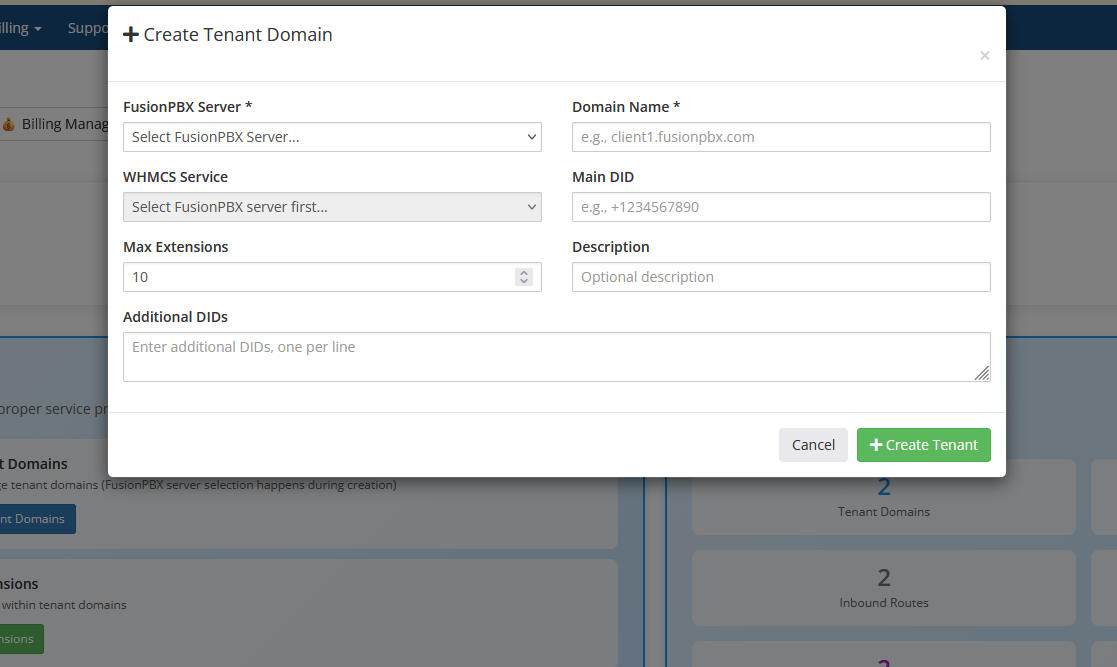
Typical workflow: select the provider/PBX, enter the new tenant domain and main DID, choose or confirm the related WHMCS service, then submit the form to create and link the tenant in a single step.
View Logs
Inspect recent provisioning and sync logs for tenants, extensions, gateways, and API interactions to assist with troubleshooting and audit trails. Use this whenever a provisioning action does not behave as expected.
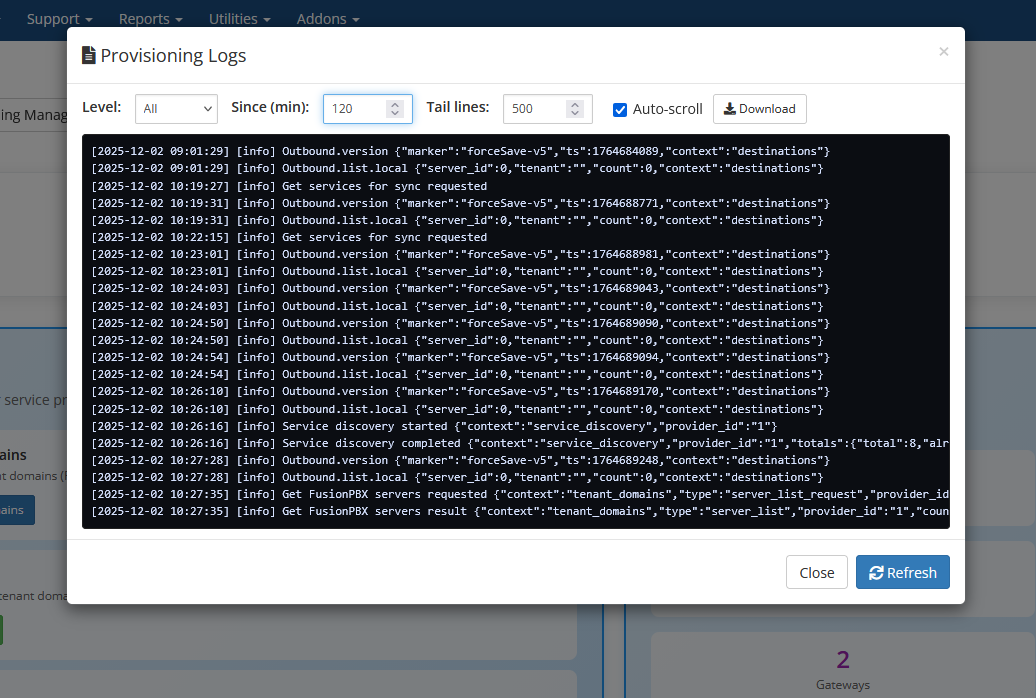
Typical workflow: when a provisioning or sync task does not behave as expected, open the logs view, filter by provider, tenant, or time range, and review recent actions and error messages before making changes or re-running the action.
Settings (Server Provisioning Settings)
Load and save WHMCS server credentials (including optional access hash) for FusionPBX hosts, and run credential and IP whitelist tests before enabling automated provisioning. Use this when first connecting a PBX server or when rotating credentials or tightening whitelists. See also Server Management and Security Hardening Overview.
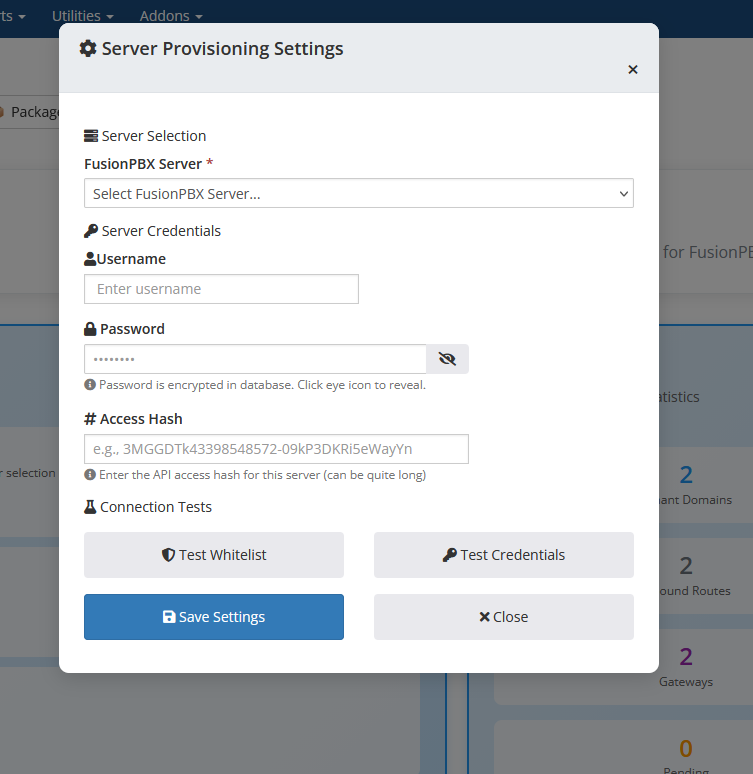
Typical workflow: select the PBX server, load the stored credentials, update passwords or access hashes if they have changed, then run the credential and whitelist tests to verify connectivity before enabling or resuming automated provisioning.
Dashboard Statistics
The top of the Client Services admin dashboard includes real-time provisioning statistics for the selected provider (for example, counts of tenants, extensions, pending or failed provisioning items, _gateways, and inbound DIDs). These figures help you quickly spot _growth trends and problem areas, such as an unexpected spike in failed _provisioning jobs or a sudden increase in pending actions that may _require attention. |
For details on how Client Services interacts with PBX servers and providers, see also Server Management, Provider Management, and Provisioning Overview.